![Smoothx_Logo_FC_White_RGB.png]](https://support.smoothx.com/hs-fs/hubfs/Smoothx_Logo_FC_White_RGB.png?height=20&name=Smoothx_Logo_FC_White_RGB.png)
NOTE - A Red dot indicates Procore Access is disconnected

Connecting your Procore Account
The following steps are require to complete you Procore connnection to Smoothx Tools.
- Connect Procore to Smoothx
- Install Procore Marketplace App
- Configure Procore Marketplace App
- Enable Webhooks
NOTE: The Procore account used to connect to Smoothx Tools MUST have FULL Administration rights.
Procore Access
- Log in to your Smoothx Tools account - https://tools.smoothx.com/
- Navigate to Settings

- Select Procore Access menu
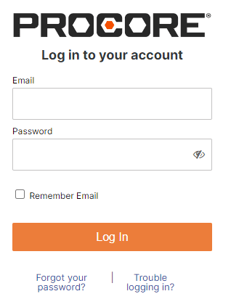
- Click Connect to Procore - You will be redirected to Procore Login
- Complete Log in to Procore & Allow Access
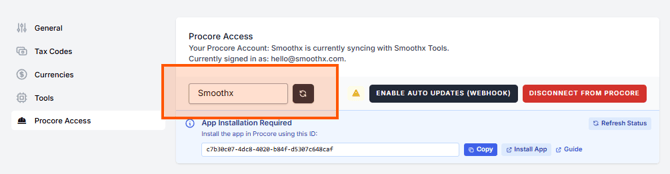
- Select the relevant Procore Company (It will autosave)
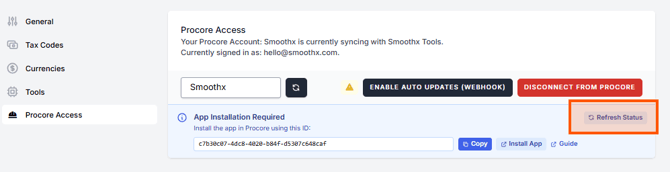
App Installation Required
The Procore Marketplace for Cost+ MUST be installed. The ProScan+ App can be installed separately to access ProScan from inside Procore.
Cost+ is required, even if not a purchased product.
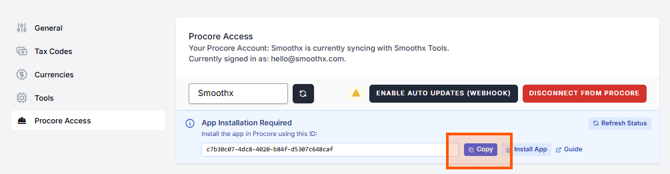
- Click Copy - Smoothx Tools ID
- Click Install App (you will be redirected to Procore Apps)
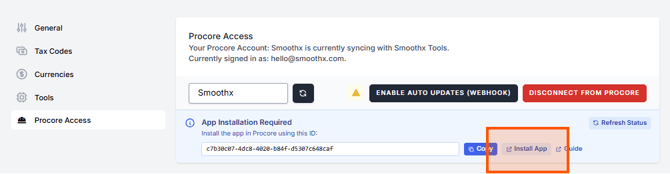
- Click Install App & Install Custom App
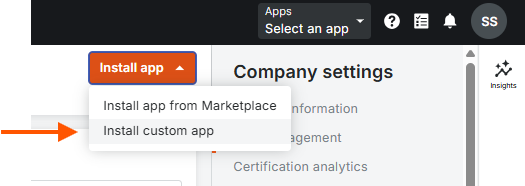
- Paste the Smoothx Tools ID
- Click Install (x2)
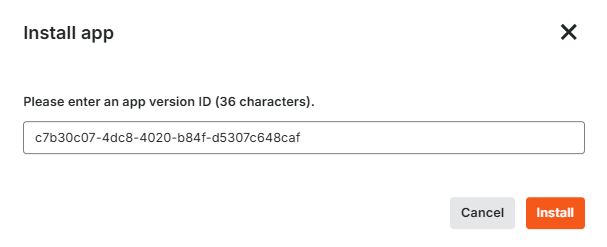
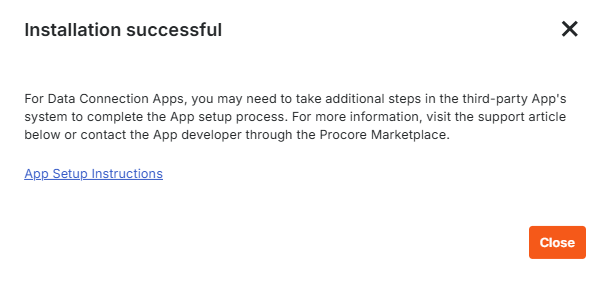
- Click Close
Configure the Marketplace App
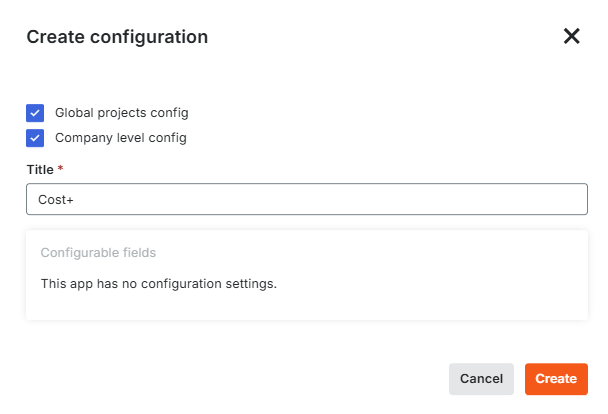
- Click Create Configuration
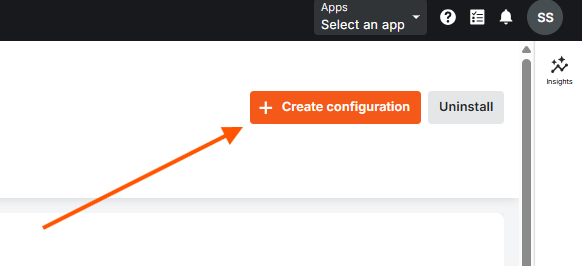
- Check the Global project config & Company level config
- Enter Title (Cost+)
- Click Create
- Return to Smoothx Tools
- Click Refesh Status
Enable Webhooks
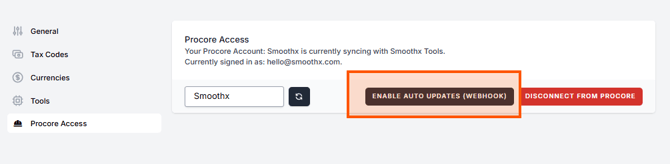
Webhooks are notifications sent by Procore to Smoothx Tools when data is updated. These are required to ensure Smoothx Tools is up-to-date and aligned with Procore.
-
Click Enable Auto Update (Webhooks)
- All buttons will appear in Red when completed
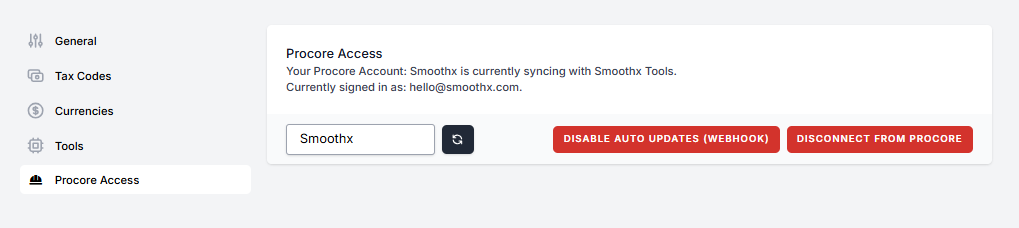
Your connection is now complete.
You will see a green dot in the Smoothx Tools Menu Bar.
