![Smoothx_Logo_FC_White_RGB.png]](https://support.smoothx.com/hs-fs/hubfs/Smoothx_Logo_FC_White_RGB.png?height=20&name=Smoothx_Logo_FC_White_RGB.png)
How to Connect QuickBooks Desktop to Smoothx
Welcome! This guide will walk you through connecting your QuickBooks Desktop company file to Smoothx. Once you're set up, Smoothx will keep your data in sync with QuickBooks automatically — you won't need to do anything manually after this.
The whole process takes about 5 minutes. You'll only need to do it once.
What you'll need
- QuickBooks Desktop open on your computer, with the company file you want to connect
- Admin access to that company file (you'll need it to authorize new apps)
- Your Smoothx login
Step 1 — Start the connection in Smoothx
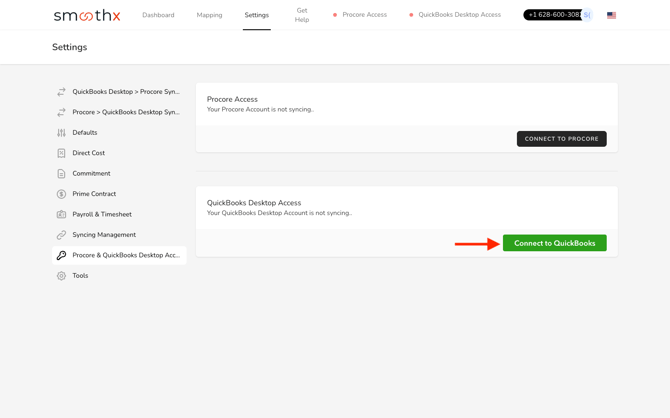
Log in to Smoothx and go to Settings → Procore & QuickBooks Desktop Access.
In the QuickBooks Desktop Access section, click the green Connect to QuickBooks button.
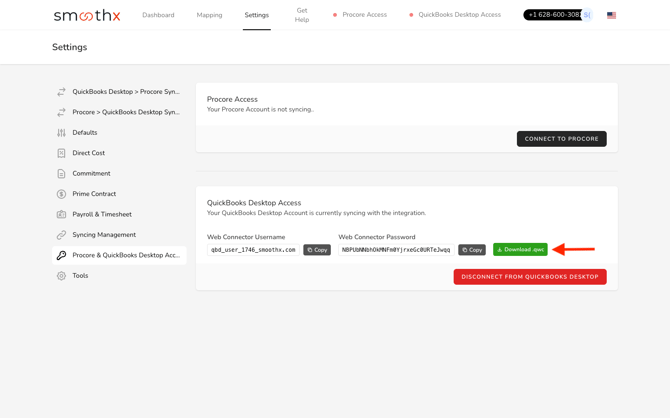
Smoothx will generate a few things for you:
- A Web Connector username (unique to your account)
- A Web Connector password (you'll use this shortly)
- A
.qwcfile — a small configuration file that tells QuickBooks how to talk to Smoothx
Step 2 — Download the .qwc file
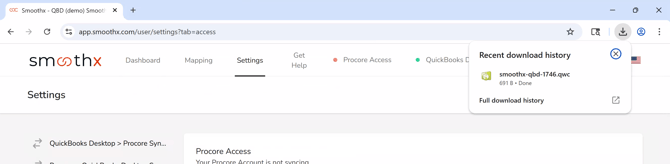
Click Download .qwc. The file will save to your computer's Downloads folder with a name like smoothx-qbd-1234.qwc.
Keep this Smoothx tab open in your browser — you'll need to come back for the password in a couple of minutes.
Step 3 — Open the QuickBooks Web Connector
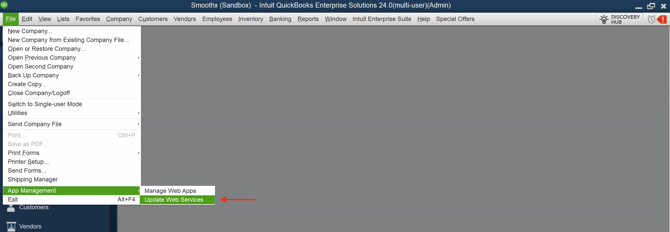
Switch over to QuickBooks Desktop. In the top menu, go to:
File → App Management → Update Web Services
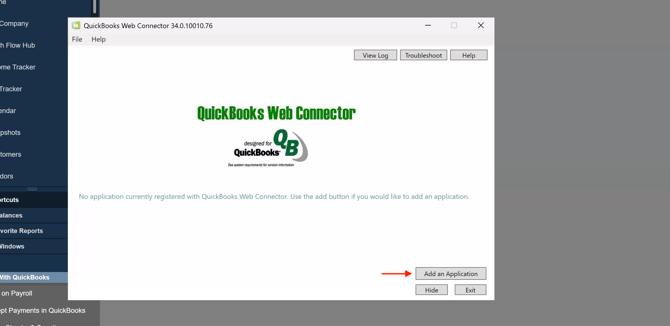
A new window called QuickBooks Web Connector will open. This is a free tool built into QuickBooks that handles syncing with external apps like Smoothx.
If this is your first integration, the list will be empty — that's normal.
Step 4 — Add Smoothx to the Web Connector
Click Add an Application in the bottom-right of the Web Connector window.
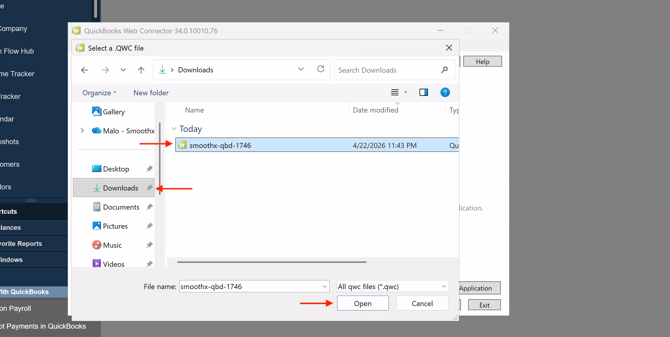
A file picker will open. Go to your Downloads folder, find the smoothx-qbd-<number>.qwc file you downloaded in Step 2, select it, and click Open.
Step 5 — Authorize Smoothx
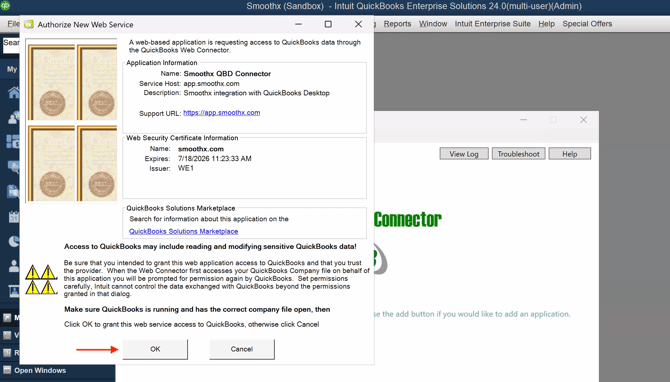
QuickBooks will show you an Authorize New Web Service window with Smoothx's details so you can confirm the integration is legitimate:
- Name: Smoothx QBD Connector
- Service Host: app.smoothx.com
- Description: Smoothx integration with QuickBooks Desktop
Review the details and click OK.
Step 6 — Set the permissions
Next, QuickBooks will ask you how you want Smoothx to access your company file. You'll see a few prompts in a row — here's how to answer each one:
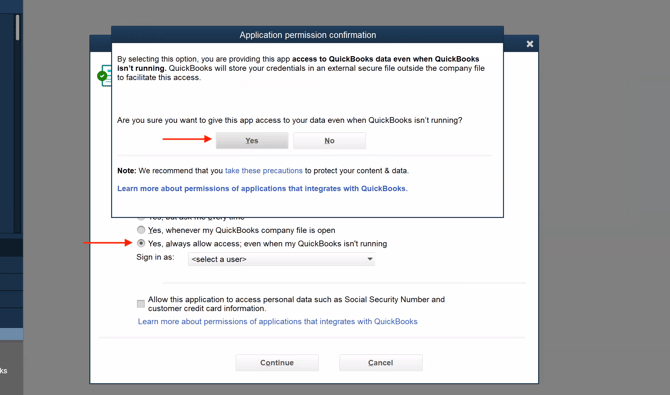
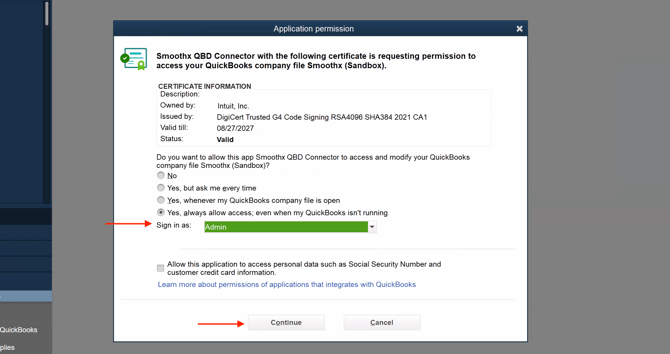
a. Choose "Yes, always allow access; even when my QuickBooks isn't running."
This is important. It lets Smoothx sync in the background so you don't have to keep QuickBooks open all the time. When QuickBooks asks you to confirm this choice, click Yes.
b. Under "Sign in as," choose Admin.
Smoothx needs admin-level access to read and write the accounting data it syncs.
Leave the "Allow this application to access personal data such as Social Security Number and customer credit card information" box unchecked. Smoothx doesn't need this information, so there's no reason to grant it.
Click Continue.
c. Review the summary and click Confirm.
QuickBooks will show you exactly what you've granted Smoothx permission to do. When you're happy with it, click Confirm.
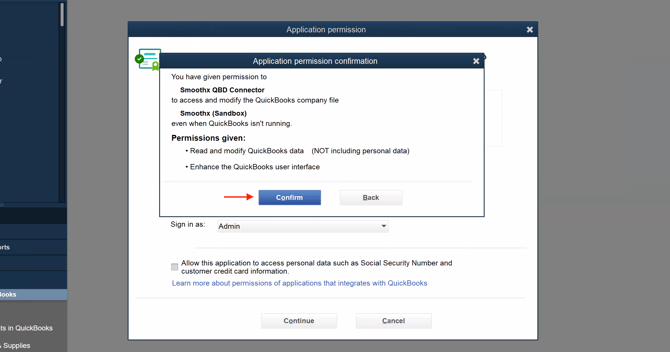
💡 Heads up: Right after clicking Confirm, you might see a small popup saying an error occurred. Don't worry — this is a known QuickBooks quirk and doesn't affect your setup. Just click Continue and carry on to the next step.
Step 7 — Enter your Web Connector password
Now it's time to use that password we set aside earlier.
Go back to your Smoothx browser tab and click the Copy button next to Web Connector Password.
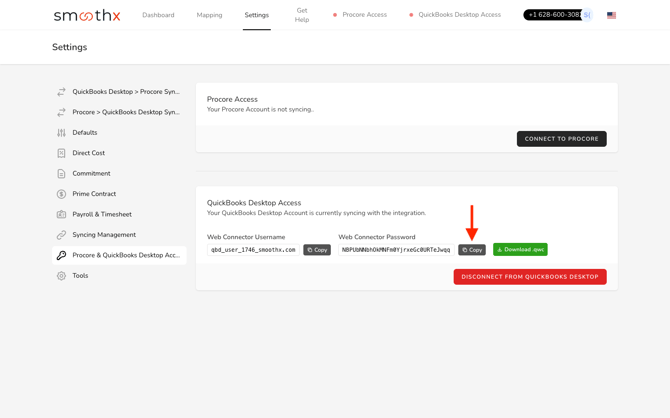
Switch back to the QuickBooks Web Connector. You'll now see Smoothx QBD Connector listed in the table. Click into the Password field for that row and paste the password you just copied.
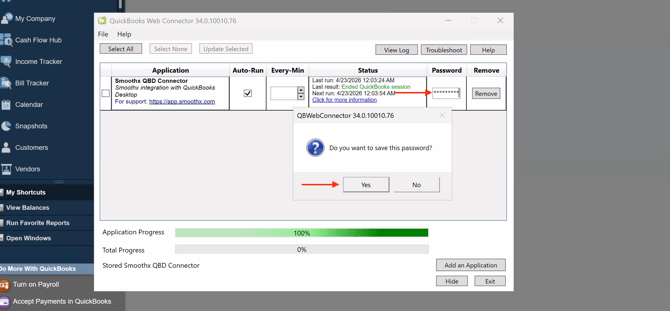
When QuickBooks asks "Do you want to save this password?", click Yes so you don't have to enter it again every time.
Step 8 — You're all set! 🎉
That's it — Smoothx and QuickBooks Desktop are now connected. The Web Connector will check in with Smoothx every 30 seconds and sync any changes automatically.
You should see a green status message like "No data exchange required" or "Update session complete" once the first check-in runs.
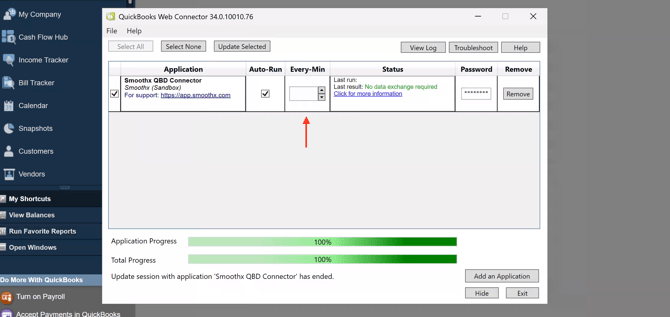
Why is the "Every-Min" column empty?
You might notice the Every-Min column for Smoothx is blank. Don't worry — this is correct and intentional.
The .qwc file you installed has a 30-second sync interval built right into it, so QuickBooks already knows how often to check in. The Every-Min field only accepts whole minutes, so filling it in would actually make your sync slower, not faster.
Just leave it blank.
Frequently asked questions
Does QuickBooks need to stay open all the time? No. Because you granted always-on access in Step 6, the Web Connector can sync even when QuickBooks itself is closed. You just need to leave your computer on and signed in.
Is my data secure? Yes. Your QuickBooks data stays on your computer — Smoothx only receives the specific information it needs to perform the sync, over an encrypted connection. We never ask for personal data like SSNs or credit card numbers.
Can I disconnect later? Absolutely. On the Smoothx Settings page, click Disconnect from QuickBooks Desktop, then open the QuickBooks Web Connector and click Remove on the Smoothx row. That's it — the connection is gone.
I'm seeing a red error message in the Web Connector. What should I do? The most common causes are (1) QuickBooks wasn't running when the sync tried to start, or (2) the wrong company file was open. Open the correct company file and click Update Selected in the Web Connector to retry.
The sync runs but nothing is showing up in Smoothx. Double-check that the Sign in as user in the permission step was set to Admin. A limited user account may not have permission to read all the data Smoothx needs.
Still stuck?
If you run into trouble at any step, we're here to help. Reach out to our support team — we'll get you sorted quickly.