![Smoothx_Logo_FC_White_RGB.png]](https://support.smoothx.com/hs-fs/hubfs/Smoothx_Logo_FC_White_RGB.png?height=20&name=Smoothx_Logo_FC_White_RGB.png)
My Scans
My Scans is your companys list of invoices to be proceess and published to Procore.
All Smoothx Tools Members (Users) with access to the ProScan+ product will be able to access and work in My Scans.
Manage the invoices that require additional information or track invoices that have already been published to Procore and are currently going through review.
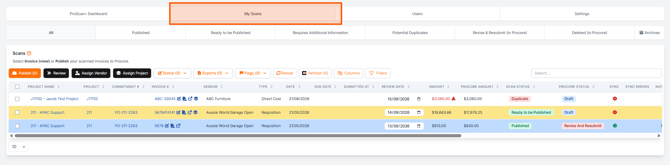
ProScan+ provides a permanent record of all invoices processed.
Nothing can be deleted, giving you a full audit trail.
My Scan includes:
-
- Locate specific invoices based on status using the shortcuts
-
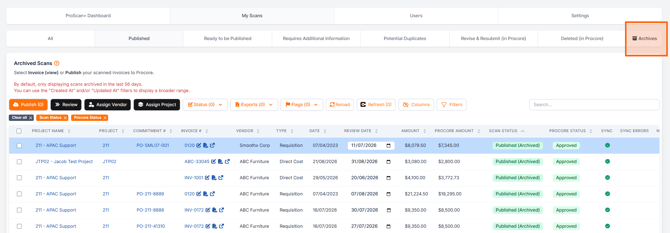
- Published and Approved Procore invoices can be found in the archive. Move invoices the don't require publishing to the archive.
-
- Perform bulk reviews, bulk publishing, export tools, flagging tools and filter your My Scan results.
-
- Sort and view your company list of invoices to be published to Procore.
Navigation Shortcuts
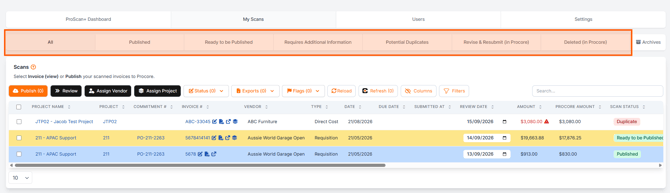
These shortcut make it quick and easy to locate specific invoices based on status.
-
All
- View the full list of invoices in My Scans.
-
Published
- View invoices that have been published to Procore.
-
Ready to be Published
- View invoices that have all the required information, but have not yet been published to Procore.
-
Requires Additional Information
- View invoices that required more information before being able to complete the publish, e.g. missing vendor, Purchase Order number.
-
Potential Duplicates
- View invoices flagged as a potential duplicate. ProScan+ compares file names, invoices numbering and vendors to identify potential duplicates.
- Note: ProScan+ does not scan the content of Procore. Only invoices processed through ProScan+ can be checked.
-
Revise & Resubmit (in Procore)
- View invoices that were published to Procore, and have been give the Procore status of Revise and Resubmit.
-
Deleted (in Procore)
- View invoices that were published to Procore, and were then deleted from in Procore.
- Note: These invoices may require review and republishing as required.
Archive Folder
The Archive Folder stores invoices that do not require publishing to Procore, along with invoices that have been published to Procore and have the Approved status applied.
ProScan+ Settings allow you to control automation rules around when published invoices are moved to the Archive Folder.
Archive Settings
See: ProScan+ Settings - Features
Moving Invoices to the Archive Folder
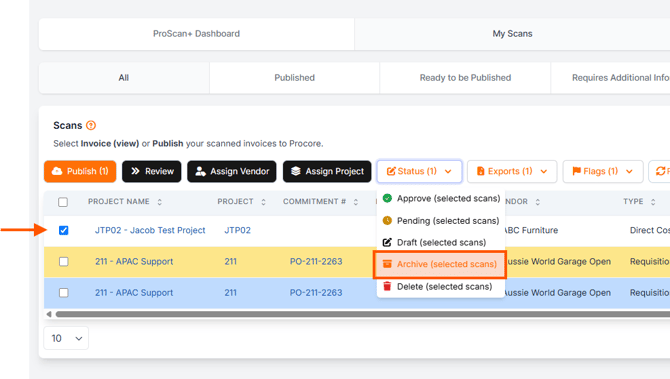
Invoices can be manually moved from My Scans to the Archive Folder, e.g. duplicate invoices.
- Tick the selected invoice(s) in My Scans.
- Select the Status button
- Click Archive (selected scans)
Bulk Actions & My Scan Menu
You can carry out bulk actions, export selected invoice details, and flag your invoices for easy searching.

-
Publish
-
Review
-
Assign Vendor
-
Assign Project
-
Status
-
Exports
-
Flags
- Tag your invoices with a coloured flag for easy searching and invoice identification, e.g. Invoices with overbilling issue.
-
Reload
- Reload the data in My Scan search results.
-
Refresh
- Refresh the data associated with selected Published Procore invoices, e.g. Procore Status refresh.
-
Columns
- Hide or Show columns displayed in My Scan search results.
-
Filters
- Apply search filters to narrow down your invoice search results
- Search
- Enter invoice numbers, vendor names etc. for narrowing down your search results.
Invoice Search Results