![Smoothx_Logo_FC_White_RGB.png]](https://support.smoothx.com/hs-fs/hubfs/Smoothx_Logo_FC_White_RGB.png?height=20&name=Smoothx_Logo_FC_White_RGB.png)
The Procore/Smoothx App installation is required when connecting Smoothx to Procore.
This allows Procore to communicate and sync data to Smoothx.
Access Smoothx Tools Settings
- Log in to Smoothx Tools - https://tools.smoothlink.net/
- Navigate to Settings
- Select Procore Access tab
Installing the Procore Market Place App
After clicking 'Connect to Procore' you must install the app on your Procore account.
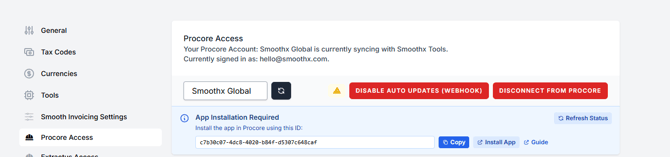
Go to App Installation Required section:
-
Click the 'Copy' button to copy the App ID
-
Now click 'Install App', which will take you to the Procore App Management
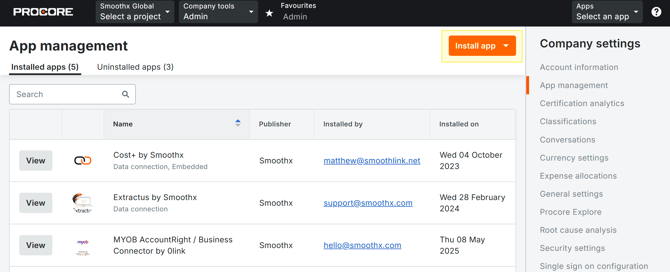
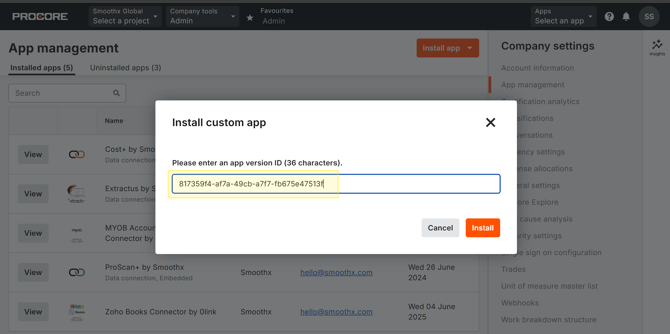
- Click 'Install app' under App Management
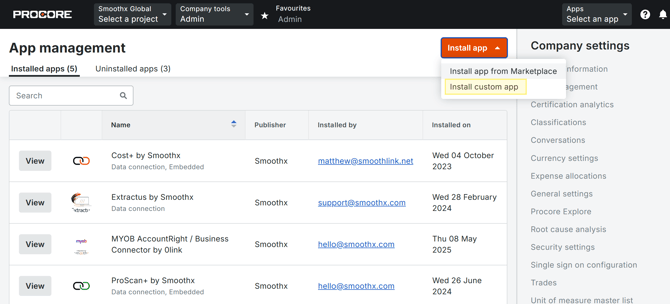
- Select 'Install custom app'
- Paste the copied App ID
- Click 'Install'
- Return to the Smoothx integration page, click 'Refresh Status'
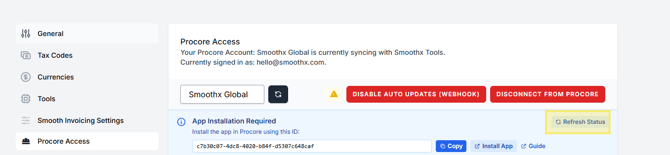
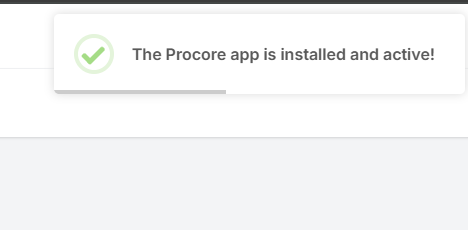
When the Procore App installation is completed, it will display a notification saying The app is installed and active. You can now continue with the setup.