![Smoothx_Logo_FC_White_RGB.png]](https://support.smoothx.com/hs-fs/hubfs/Smoothx_Logo_FC_White_RGB.png?height=20&name=Smoothx_Logo_FC_White_RGB.png)
ProScan+ Settings are only visible to Smoothx Tools Admin users
Features (Admin User Only)
Features settings include the following sections:
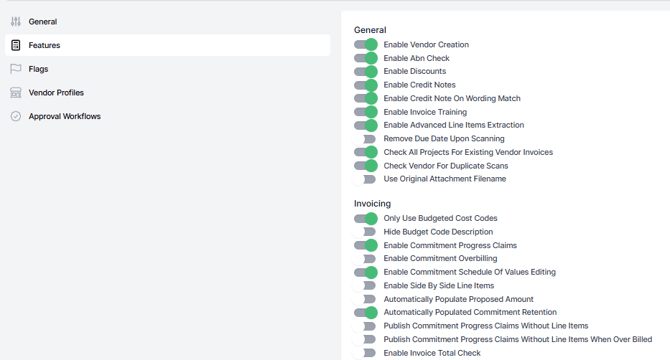
General Features
-
Enable Vendor Creation
- Add new vendors to Procore Directory.
Confirm the vendor name does not already exist before adding new vendors.
Duplicate vendors will lead to syncing issues with any Smoothx accounting integrations.

-
Enable ABN (Australian Business Number) Check
-
Australia only.
-
When enabled, ProScan+ checks ABNs on the ABN website, then compares the registered name to the vendor name on the scan.
-
A mismatch shows an orange warning banner at the top of the scan.
-
-
Enable Discounts (Unit Price or Percentage)
- Apply discount amounts per scan line items.
- When disabled, Unit Price discount is applied (default).
- When enabled, percentage discount is applied.


-
Enable Credit Notes
- Enables Credit Note options on scans.
- When enabled scan line items are coverted to negative figures.
- Invoices Published to Procore, then synced to your accounting software will be created as a Credit Note.

-
Enable Credit Note On Wording Match
- Automatically enable the Credit Note toggle based on scanning keyword on the invoice, e.g. Credit Note, Credit Adjustment, red coloured text, negative figures.
-
Enable Invoice Training
-
Enable Advanced Line Items Extraction
- Extract all invoice line items from the scan.
- When disabled, a signle line items is displayed with the invoice total amount.
- When enabled, ALL invoice line items are displayed.
-
Remove Due Date Upon Scanning
- Removes the Due Date from the Scan.
- Enabled when the Due Date for AP Bills is managed via your accounting company contact settings.

-
Check All Projects For Existing Vendor Invoices
-
This controls how widely ProScan looks for potential duplicates. A scan is flagged as a potential duplicate when 2 of these 3 match another scan:
- invoice number
- attachment file name
- invoice total
- When enabled: ProScan compares against scans in every project. A scan with no project yet is still checked.
- When disabled: ProScan only compares against scans in the same project. Scans with no project aren't checked.
- What happens when a duplicate is flagged:
-
-
-
- The scan's status becomes Potential Duplicate, with a link to the matching scan.
- A user can confirm the two are different invoices. The pair isn't flagged again.
- Some matches are always flagged and can't be dismissed: another scan in the project is linked to the same Procore record, or has the same invoice number on the same commitment or on another direct cost.
-
-
Check Vendor For Duplicate Scans
- This controls whether the vendor counts in the 2-of-3 duplicate check above.
- It only flags scans; nothing is linked or changed in Procore.
- When disabled: the vendor is ignored.
- When enabled: both scans must also have the same vendor. Resulting in fewer false alarms between suppliers, but scans with no vendor are never flagged by this check.
- Won't help with: two suppliers using the same invoice number on direct costs in one project. That's always flagged; change the invoice number on one of the scans.
-
Use Original Attachment Filename
- When disabled, the file name attachment added to Procore will be changed to match the Invoice Number in ProScan+.
- When enabled, the original file name will be retained.
Invoicing Features
-
Only Use Budgeted Cost Codes
-
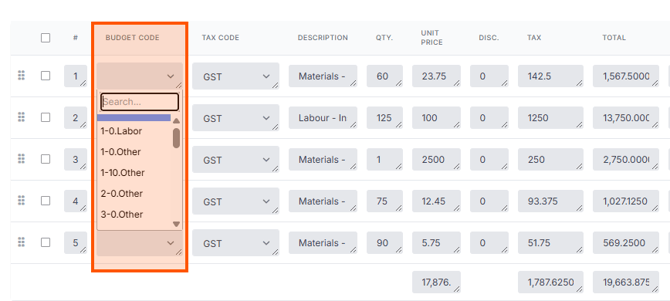
Hide Budget Code Description
- When enabled, only the budget numbers/letters are displayed when entering budget codes.
- When disabled, the full budget description is displayed.
-
Enable Commitment Progress Claims
- When enabled, ProScan matches invoices to Procore commitments and publishes them as Progress Claims
- When disabled, every scan is a Direct Cost, and no commitment matching happens. "Progress Claim" is removed from the Invoice Type dropdown.
-
Enable Commitment Overbilling
- When enabled, no over-billing warnings, blocks or trimming. Amount are published to Procore as displayed in the scan.
- When disabled, ProScan stops a claim from billing more than the balance remaining on a Schedule of Values (SOV) line.
-
Enable Commitment Schedule Of Values Editing
- When enabled, the commitment's Schedule of Values becomes editable on a progress claim scan:
- Unit-based SOV lines: Edit quantity and unit cost.
- Amount-based SOV lines: Edit amount
- When enabled, the commitment's Schedule of Values becomes editable on a progress claim scan:
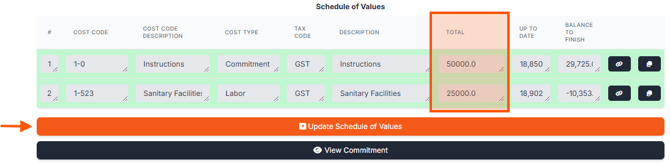
Overbilling settings must be enabled in Procore, and applied to the project when usings this feature. See Configure Settings: Invoicing
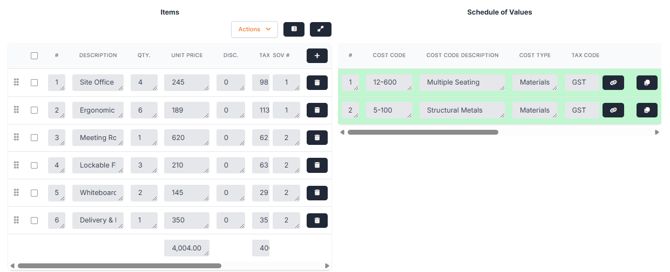
- Enabled Side by Side Line Items
- When enabled, the scan line items and commitment SOV/variations are placed side-by-side
- Automatically Populate Proposed Amount
- When enabled, each SOV line's Proposed Amount (subcontractor claimed amount) is set to the same value as Work Completed This Period.
- When disabled, only Work Completed This Period is filled in.
-
Automatically Populated Commitment Retention
- When enabled, each line's Retention Retained This Period is set to the commitment's retention % × the amount claimed on that line.
- When disabled, retention is sent as $0, for users to enter in Procore.
- Requirement: the commitment must have a retention % set in Procore.
-
Publish Commitment Progress Claims Without Line Items
- When enabled, a progress claim is created in Procore as a header only: date, invoice number, status, billing period and custom fields, with no line amounts.
- A matched commitment, billing period and invoice number are enough for the scan to be ready.
- SOV, over-billing, Proposed Amount and retention don't apply.
- When disabled, scanned lines are matched to the commitment's SOV lines.
- The commitment must have a Schedule of Values.
- The over-billing checks apply.
- When enabled, a progress claim is created in Procore as a header only: date, invoice number, status, billing period and custom fields, with no line amounts.
-
Publish Commitment Progress Claims Without Line Items When Over Billed
- When enabled, if a claim is refused for being over-billed, ProScan automatically retries and publishes it as a header-only claim with no line amounts, keeping the chosen status.
- When disabled, the over-billed error stands, and nothing is published.
-
Enable Invoice Total Check
Compares the amounts on the scan with the totals read from the original invoice, to catch misreads and keying mistakes before they reach Procore.
It runs two checks.
Check 1: Invoice Total vs document total (warning only)
- If they differ: the Invoice Total turns red.
- When publishing: a "Totals do not match" dialog appears, with Publish anyway / Update anyway buttons.
Check 2: Procore Total vs document (blocks publishing)
- What's compared: the amount going to Procore is compared with:
- the document subtotal (ex tax), normally
- the document total (inc tax), if Publish Amount Including Tax is on
- If they differ:
- The Procore Total turns red.
- The scan is marked Requires Additional Information with a message such as "Procore total ($X) does not match the total excluding tax on the document ($Y)".
- The Publish button is hidden until the problem is fixed.
Tax Management
-
Disable Tax Input
-
When enabled, tax is removed from the scan.
-
The Tax Code column, tax fields and the Assign Tax Code bulk action will not be displayed.
-
Every line item tax is forced to zero.
-
When disabled, users pick a tax code per line and tax is calculated from the code's rate.
-
This setting should only be enabled after consultation with Smoothx Support.
Automation Features
-
Enable Automatic Archiving
- When enabled, invoices that have been Published and reached the nominated status will be automatically moved to the Archive Folder.
- Archiving takes place hourly.
- Set the number of days for Auto-archive Delay and Automatic Archiving Trigger Status. . See ProScan+ General Settings.
-
Enable Automatic Publishing Upon Scanning
- When enabled, invoices will automatically publish upon scanning.
Note: Recommended to check all scans prior to publishing.
This setting should only be enabled after consultation with Smoothx Support.
-
Enable Automatic Ready Status
- When enabled, the scan will be marked as "Ready to be Published" status.
- Required data includes: Project, Invoice Type, PO Number, Vendor, Billing Periods, Invoice Dates.
- Enabled Automatic Publishing When Criteria Met
-
Every 15 minutes, publishes the "Ready to be Published" scans that meet every criterion selected.
-
A scan that misses a criterion, or that cannot be checked against it, stays in "Ready to be Published" for a manual publish.
-
Turning this setting on switches off "Enable Automatic Publishing When Ready".
- Criteria Include:
-
Project - The scan must have a project.
-
Progress Claims (matched to a commitment) - It's a progress claim linked to a commitment.
-
Direct Costs (cost code & cost type on every line) - It's a direct cost with at least one line, and every line has a cost code and a cost type.
-
Totals Match - The amount going to Procore matches the document's total.
-
Vendor - A Procore vendor is selected.
-
Invoice Number - Must be a real number, not blank or a label.
-
Invoice Date - The Issue Date field is entered.
-
-
-
Enable Automatic Publishing When Ready
- When enabled, scans will be published automatically to Procore when the "Ready to by Published" status is reached.
-
Enable Automatic Return To My Scans Upon Saving
- When enabled, returns the user to My Scan results page after clicking Save on a scan.
-
Enable Automatic Return To My Scans Upon Publishing
- When enabled, returns the user to My Scan results page after publishing a scan.
-
Automatically Archive Scans Deleted In Procore
- When enabled, invoices deleted inside Procore (following a publish) will be automatically moved to the Archive Folder.
Note: Not recommend enabling, as you may need to review and revise scan for re-pblish.
This setting should only be enabled after consultation with Smoothx Support.
- Automatically Archive Duplicate Scans
- Scans flagged as Potential Duplicates will automatically be archived
- The Check Vendor For Duplicate Scans setting should be disabled. Only Invoice Number and file name will be checked to flag duplicates.
Beta Features
-
Enable New Scan Management Interface
-
Enable Multi Project Direct Cost Scanning
-
Use Vendor Scan Profiles
- Approval Workflows
For more ProScan+ settings see: