![Smoothx_Logo_FC_White_RGB.png]](https://support.smoothx.com/hs-fs/hubfs/Smoothx_Logo_FC_White_RGB.png?height=20&name=Smoothx_Logo_FC_White_RGB.png)
The Multi-Project Direct Cost tool allows you to split an invoice and allocate costs to multiple projects in Procore.
Individual expense line items can be allocated to a project.
The following is covered in this article:
Enable Multi-Project Direct Cost Setting
Can be enabled by your Smoothx Tools Administrator
- Log in to your Smoothx Tools - https://tools.smoothx.com/
- Select ProScan+ Application
- Select the Settings menu

- Select Features
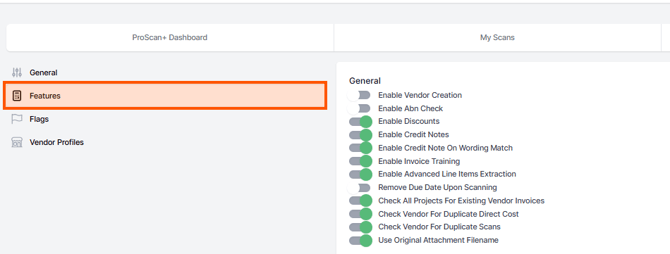
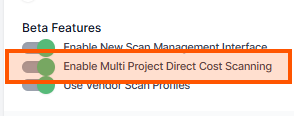
- Go to Beta Features
- Enable Multi Project Direct Cost Scanning
Start Multi-Project Direct Cost Scanning
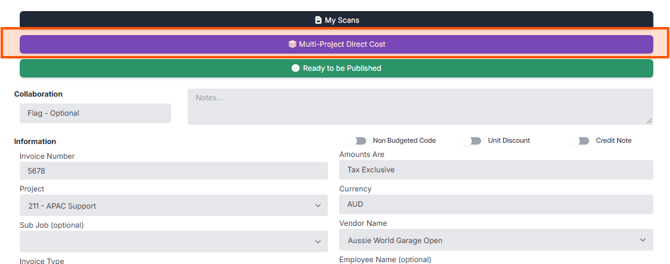
- Open your invoice scan
- Click Multi-Project Direct Cost button
Multi-Project Direct Cost Layout
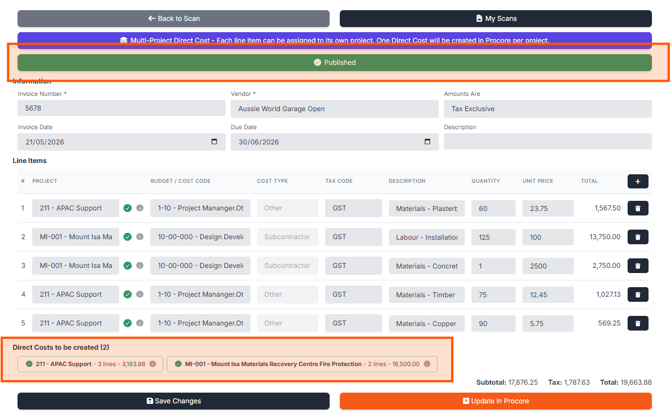
The scan is divided into three sections:
-
Information - Enter Invoice numbers, vendor, dates and tax setting.
-
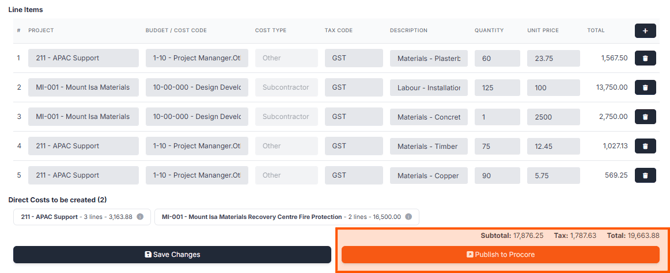
Line Items - Breakdown of costs and which project they will be allocated to.
-
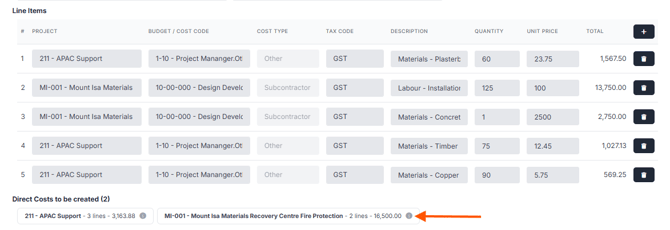
Direct Cost to be created - Preview the Direct Cost data to be added to Procore.
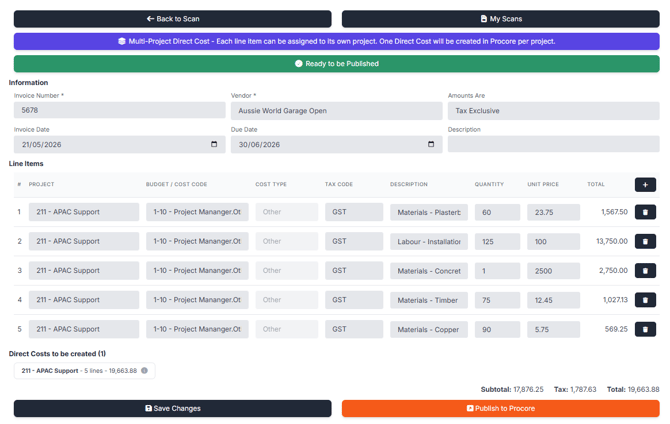
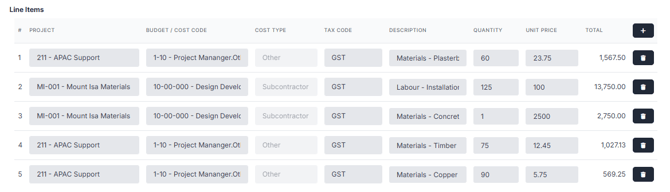
Processing Line Items
- Add/Remove line items (as required using + button or delete bin)
- Select the Project
- Select the Budget/Cost Code
- Select the Tax Code
- Confirm the Quantiy and Unit Price
Preview Direct Cost
- Click the Information icon
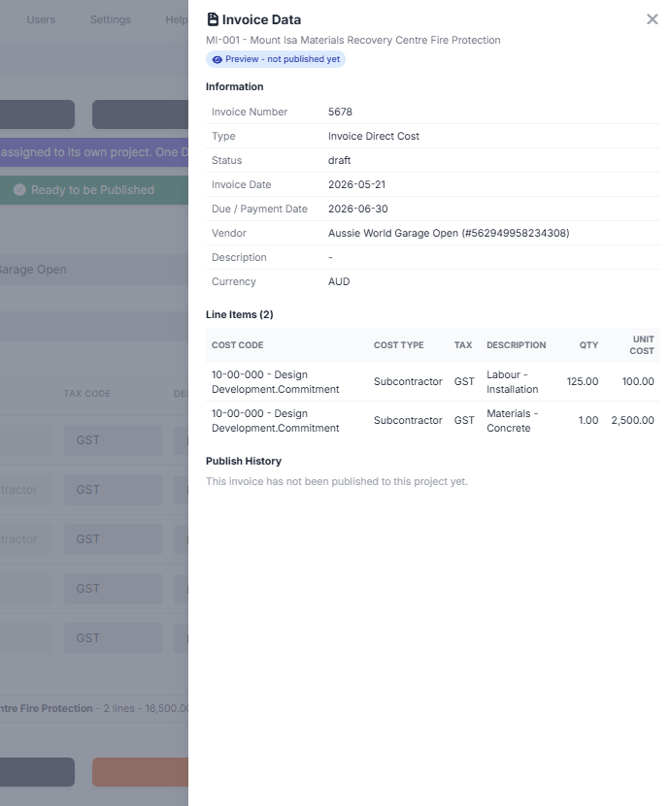
Publish to Procore
- Click Publish to Procore at the bottom of the scan
Scan will show Published and the Direct Cost created will turn green.