![Smoothx_Logo_FC_White_RGB.png]](https://support.smoothx.com/hs-fs/hubfs/Smoothx_Logo_FC_White_RGB.png?height=20&name=Smoothx_Logo_FC_White_RGB.png)
Vendor Scan Profiles are rules specific to one vendor in Procore.
Vendor Profiles allow keyword matching to text/numbering on the scanned invoice(s) against the vendor name in Procore.
You can apply vendor-specific defaults, e.g. Cost Code, Cost Type and Tax Code.
Vendor Profile Settings are only applied to invoices scanned after the profile is created. Scans already in ProScan+ will not use the profile.
The following is covered in this article:
Enable Vendor Scan Profile Settings
- Log in to your Smoothx Tools - https://tools.smoothx.com/
- Select ProScan+ Application
- Select the Settings menu

- Select Features
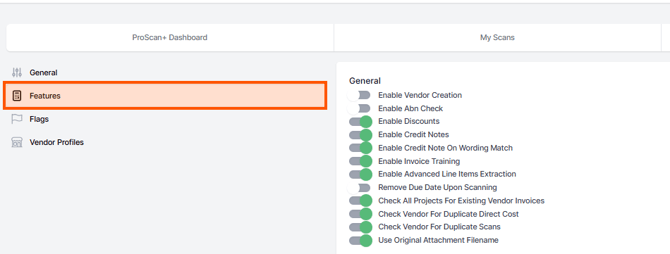
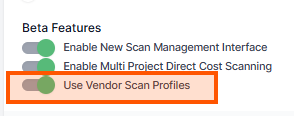
- Go to Beta Features
- Enable Use Vendor Scan Profiles
Add a Vendor Profile
- Go to Vendor Profile settings
- Click Add Vendor

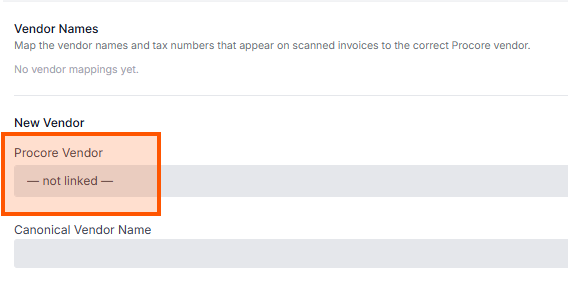
- Select the Procore Vendor Name
Apply Vendor Profile Settings
- Procore Vendor
- When a profile is linked to the Procore vendor, the scan is pinned to that exact vendor.
- Picking a vendor fills in the canonical name.
- The list of vendor is taken from your Procore Director - Companies.
-
Canonical Vendor Name
- Vendor name as displayed in Procore.
-
Scanned Vendor Names
- Match vendor naming as shown on the scanned invoice to the vendor selected.
- One entry per line.
-
ABN / Tax Numbers
- Match vendor tax numbers as shown on the scan to the vendor selected.
- Spaces are ignored.
Defaults (Direct Costs Only)
-
Default Cost Code
- Apply default Cost Code to selected Vendor
-
Default Cost Type
- Apply default Cost Type to selected Vendor
-
Default Tax Code
- Apply default Tax Code to selected Vendor
Scan Behaviour
-
Invoice Type
- Select invoice type for vendor, e.g. Direct Cost vs Progress Claim.
-
Amounts Are
- Select if scan amounts for vendor are Tax Inclusive or Tax Exclusive.
-
Trust Date Field
-
Used when a vendor's "Invoice date" field is misleading.
-
Due Date or Delivery Date replace the invoice date only when the document has one of these dates.
-
Delivery Date falls back to the service start date when not listed on the scan.
-
- Force Document Type
- Always treat this vendor's documents as that type. Credit Note also marks it as money-in (negative).
-
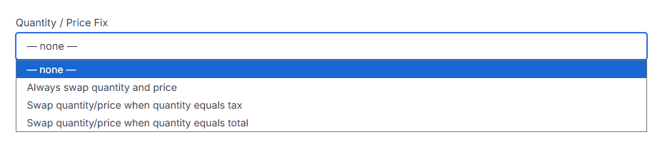
Quantity/Price Fix
- For vendors when ProScan+ is not able to read the quantity and unit price, or the figures are the wrong way round.
- Runs after missing qty/price/total have been updated:
- Includes:
- Always swap quantity and price
- Swap quanity/price when quantity equals tax
- Swap quanity/price when quantity equals total
-
Collapse to a single line item
- Scan expense line items are consolidated to a single line item.
- Uses the first line item Cost Code/Cost Type and Tax Code.
- Quantity = 1 & Unit Price = total of all lines.
-
Auto-archive scans from this vendor
- Scans from this vendor will be auto-archived immediately.