![Smoothx_Logo_FC_White_RGB.png]](https://support.smoothx.com/hs-fs/hubfs/Smoothx_Logo_FC_White_RGB.png?height=20&name=Smoothx_Logo_FC_White_RGB.png)
Procore Retention
- Xero retention receivables account code (Head Contract Claims)
- Xero retention payables account code (Subcontractor Commitments/Claims)
- Apply Default Retention Settings in Smoothx
Xero Retention Account Codes
Retention account codes should be created in Xero to capture the costs. One for receivables and one for payables.
-
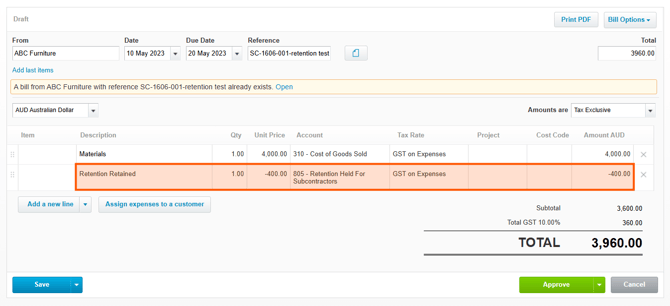
Retained costs will sync to Xero as a negative line item
-
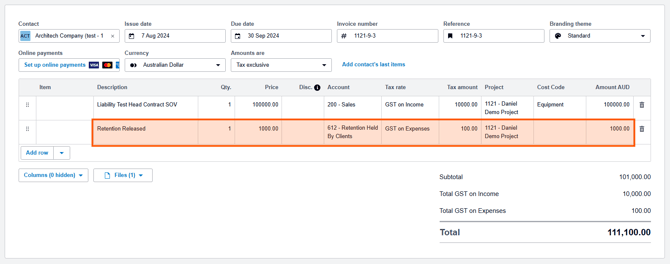
Released costs will sync to Xero as a positive line item
Below are example account codes:

NOTE: Any accounts shown in this article are purely for example purposes; please talk to your accountant for what accounts to use and how to organise them, and how retention should be used in your business.
Xero Retention Tax Rates
-
GST on Income/Expenses - Tax will NOT be applied on retained costs. Tax will be applied when the retention amount is released from Procore.
-
BAS Excluded - Tax on the retained amount will be applied upfront. Tax will not be applied when the retention amount is released from Procore.
Smoothx Retention Settings
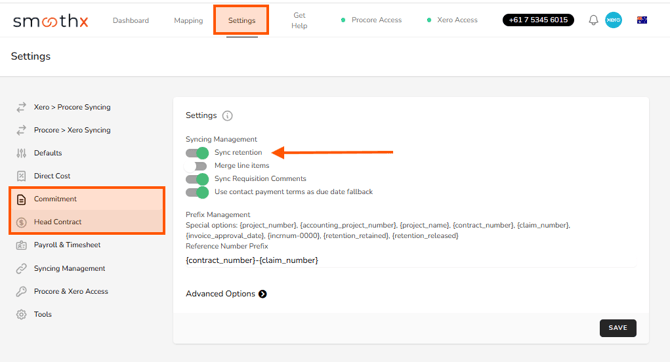
First enabled the sync retention settings, and then apply the Default retention account codes.
Enable Retention Syncing:
- Go to Smoothx
- Select Settings meu
- Navigate to your Commitment Settings and Head Contract Settings.
- Turn on the Sync retention toggle for both sections
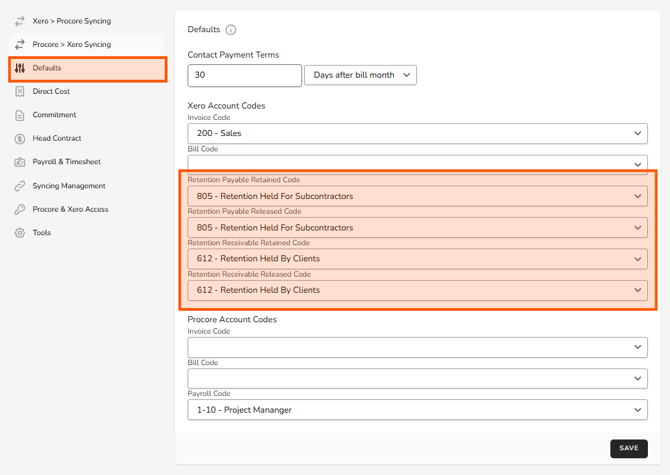
Apply Retention Defaults:
- Go to Smoothx
- Select Settings meu
- Navigate to Defaults
- Apply the Retention Payables & Retention Receivables account codes
Note: The Retention Payable codes are for Commitment Retentions and the Retention Receivable codes are for Head Contract Retentions.
Commitment Retentions
Commitment retention will be captured against the Xero Bills.
Example Xero Bill with Retention Retained:
Head Contract Retentions
Head Contract retention will be captured against the Xero Sales Invoices.
Example Xero Sales Invoices with Retention Released:
Separating Retention and Liability
If your accounting practices require splitting retentions from liability balances:
- Go to Smoothx
- Select Settings meu
- Navigate to your Commitment Settings and Head Contract Settings.
- Select Advanced Options
- Turn on the Sync retention and liability toggle for both sections
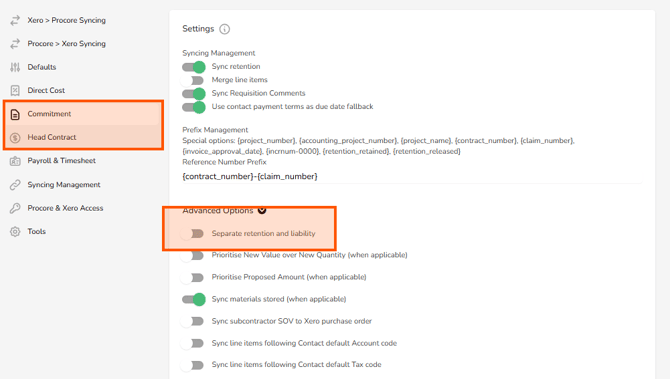
- Set your retention payable codes as Expense types and retention receivable codes as Revenue types in Xero.
- Select your specific liability accounts in the enabled Defaults dropdowns so debits and credits post to distinct liability/retention accounts during syncing.