![Smoothx_Logo_FC_White_RGB.png]](https://support.smoothx.com/hs-fs/hubfs/Smoothx_Logo_FC_White_RGB.png?height=20&name=Smoothx_Logo_FC_White_RGB.png)
This guide explains how to enable the Commitment Overbilling feature in ProScan+.
The Overbilling function MUST also be enabled on the Procore Project.
See: How do I prevent or allow overbilling on a subcontractor invoice?
When managing commitment progress claims, you can control whether ProScan+ allows bills to exceed the remaining balance on a Schedule of Values (SOV) line.
-
- When Enabled: No overbilling warnings, blocks, or trimmings are applied. Amounts are published to Procore exactly as displayed in the scan.
- When Disabled: ProScan stops a claim from billing more than the balance remaining on an SOV line.
How to Enable Commitment Overbilling
- Open Smoothx Tools and select ProScan+.
- Navigate to the Settings menu and click the Features tab.

- Under the Invoicing section, toggle on Enable Commitment Overbilling.
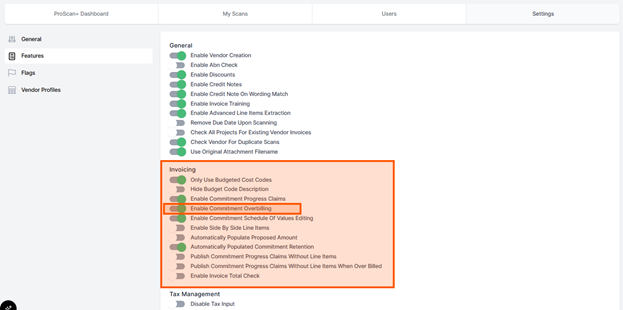
- Click Save
How It Works in My Scans
When Disabled
-
- Blocking Overbills: ProScan+ actively blocks a claim from billing more than the Balance to Finish remaining on an SOV line.
- Negative Balances: If a line item attempts to claim more than the available balance (such as the example shown in your scan where line item 2 shows an overbilled balance of $-10,353.75), ProScan will flag the discrepancy.
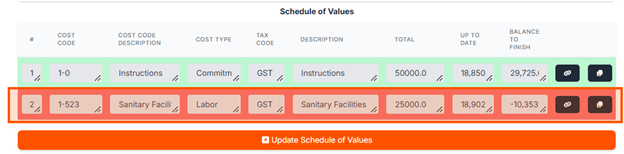
- Publishing Restrictions: The system will prevent you from publishing the overbilled claim to Procore
The additional setting Publishing header-only claims upon overbilling will allow you to publish a draft zero-dollar claim if overbilled.
When Enabled
When processing a commitment progress claim in My Scans, ProScan compares the claimed amount against the remaining balance of the Schedule of Values (SOV) line:
- With Overbilling Enabled: If a line item exceeds the remaining SOV balance, ProScan will bypass warnings, blocks, or trimmings. The system allows the overbilled amount and publishes it to Procore exactly as it appears on the scan.
- Visual Indicators: Rows and line items that exceed the remaining balance will typically display adjusted balance figures (such as negative balance-to-finish indicators) without blocking the workflow.

How to Resolve Overbilling
If you encounter an overbilled line item with the setting disabled, you have two options to proceed:
- Adjust the Claim: Edit the quantities or amounts on the SOV so that the total claimed per line does not exceed the remaining SOV balance.
- Raise a Procore Variation: Create a variation in Procore to increase the available contract amount
- Enable Overbilling: If the overbilling is intentional and approved, navigate back to your ProScan+ Settings and toggle Enable Commitment Overbilling to Enabled.
The additioanl setting Enable Commitment Schedule of Values Editing will allow you to edit SOV Quantity and Unit Costs inside ProScan+.