![Smoothx_Logo_FC_White_RGB.png]](https://support.smoothx.com/hs-fs/hubfs/Smoothx_Logo_FC_White_RGB.png?height=20&name=Smoothx_Logo_FC_White_RGB.png)
Missing Information
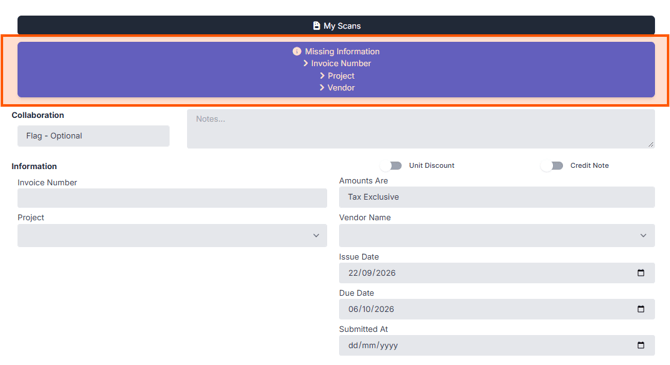
-
Invoice Number
-
No invoice number entered.
-
-
Project
-
No project selected.
-
-
Vendor
-
No vendor selected (Direct Costs Only)
-
-
Invoice Type
-
No Invoice Type selected. Select Direct Cost or Progress Claim.
-
-
Commitment
-
Progress Claim with no selected commitment.
-
-
Billing Period
-
Progress Claim with no Billing Period.
-
No billing period set up in Procore for the project selected in the scan.
-
To set up a billing period for your project in Procore, see this help article from Procore: Create Manual Billing Periods
-
-
Commitment Schedule of Values (SOV)
- The commitment has no SOV lines in Procore.
- Add SOV lines to the commitment in Procore.
- Or, enable Publish Requisition Without Line Items
-
Currency of invoice ({x}) does not match currency of commitment in Procore ({y})
- Invoice and commitment currencies differ.
-
Cost Code / Cost Type
- Direct Cost line(s) missing a code or type.
-
Budget Code
- Direct Cost on a WBS/budget-code project with an incomplete line.
-
Tax Code
- The project requires a tax codes, and the line item has none selected.
Vendor
-
The vendor attached to invoice {reference} could not be found in Procore. Please re-select the vendor and try again.
- The vendor on the scan no longer exists in Procore (deleted, inactive, or in another company).
- Check the vendor is active in the Procore Company Directory.
- Click Settings > Tools > Refresh Contacts, re-select the vendor on the scan and publish again.
- The vendor on the scan no longer exists in Procore (deleted, inactive, or in another company).
-
Vendor id is invalid (or another Procore vendor message)
- Procore rejected the vendor on a Direct Cost.
- Check the vendor is active in the Procore Company Directory.
- Click Settings > Tools > Refresh Contacts, re-select the vendor on the scan and publish again.
-
The vendor name does not match the ABN company name.
- Enable ABN Check is on (AU). The ABN on the invoice is registered to a different name.
- Check the vendor and ABN are correct.
Publishing to Procore
-
Please make sure the Commitment is approved in Procore.
-
Please make sure the Commitment has a valid Schedule of Values in Procore.
-
Please make sure you have selected a valid Billing Period.
-
Could not verify the latest requisition in Procore. Please try again.
-
The current user does not have permission to publish the invoice to Procore.
-
Existing Draft Invoice: The latest invoice in Procore is not yet approved. Publishing this invoice will prevent any further modifications to the previous invoice.
-
Totals do not match: The invoice total ({a}) does not match the total on the document ({b}). The Procore total ({c}) does match. Do you still want to publish the invoice?
-
Procore total ({x}) does not match the total including tax on the document ({y}) (or excluding tax)
- Enable Invoice Total Check setting is on and the line items don't add up to the total read off the scan.
- Check quantities, unit prices, tax and the Amounts Are (Tax Inclusive/Exclusive) setting.
Commitment/Progress Claims
-
Items – Total is greater than Commitment Total Amount
-
The total of the line items on the invoice scanned is greater than the total value of the commitment in Procore.
-
To publish, enable commitment overbilling.
- Or, update the Procore commitment SOV/variation to increase available budget.
-
Cost Codes & Cost Types
- Cost Code is not available on project. Please refresh cost codes or amend line item
- This error will occur when publishing a scan to Procore but the cost code does not exist on the project in Procore, or the project needs to be refreshed inside of ProScan+.
- For information about how to add cost codes into a Procore project, see this Procore article about copying company level cost codes into the project and this Procore article about manually adding cost codes to a project.
Status
- The selected status is not available on this commitment. Please check your statuses configuration in Procore.
- The selected invoice status is not available in Procore. Please select another status.
- The invoice needs to have a status of Draft or Revise and Resubmit to be editable or deletable.
Invoice Fields
- An invoice has already been taken (or any message starting An invoice … / containing The Invoice Number)
- Automatic publishing skipped - the invoice number is missing or is not a real number.
- This invoice has a zero value.
- The selected employee is invalid. Please make sure the employee is available within the selected project.
Line Item Actions, Splitting & Table Actions
- Invalid SOV number. Please enter a number between 1 and {max}. / Invalid VAR number
- No sub job exists for this project.
- The quantity must be a number.
- A published scan cannot be split. / Cannot split a single-page scan.
- Page {n} was split off, but this scan could not be re-read from its remaining pages — it has been flagged for manual review.
- No invoice is selected. / You have not selected any scans to …
- The invoice could not be deleted. Please delete it from Procore first.
- All invoices were not deleted. (bulk)
- The current user does not have permission to delete the invoice from Procore. (bulk delete).
- The purchase orders could not be refreshed. / The invoices could not be refreshed.
- No project is currently selected.
- An error occurred while exporting scans.
- Red amount with the tooltip Line items' total doesn't match the overall total.
Duplicates
- Two of invoice number / file name / total match another scan (plus vendor, if Check Vendor For Duplicate Scans is on)
- Same Procore invoice already linked to another scan
- Direct Cost: same invoice number + vendor + date in the same project
- Progress Claim: same invoice number on the same commitment
Multi-Project Direct Costs
- Partially synced - {ok} of {total} Direct Costs published. | {Project}: {reason} | … (table shows Partially Published)
- Matched an existing Direct Cost in Procore - review the publish results and confirm before updating. / Matched {n} existing Direct Costs
- Invoice Number required, Vendor required, Project required, Budget Code required, Cost Code required, Cost Type required, Tax Code required (red captions)
- This scan has already been published to Procore - it can no longer be converted to a Multi-Project Direct Cost.
- This scan has been processed as a Multi-Project Direct Cost.
Generic Errors
- The invoice could not be synced
- Could not update published invoice: {error}
- Attachment sync failed — the invoice was published to Procore but PDF attachments could not be uploaded.
- Only jpg, jpeg, png, pdf, htm, html and bmp images are allowed
- The files.0 must not be greater than 20480 kilobytes. (or, rarely, Sorry! Maximum allowed size for an image is 20MB)
- Please upload an image / Please upload a file to be scanned.
- The document failed to be scanned. / All Documents failed to be scanned. / A document failed to be scanned.