![Smoothx_Logo_FC_White_RGB.png]](https://support.smoothx.com/hs-fs/hubfs/Smoothx_Logo_FC_White_RGB.png?height=20&name=Smoothx_Logo_FC_White_RGB.png)
How to manage scans flagged as potential duplicates in My Scan:
What happens when a duplicate is flagged:
- The scan's status becomes Potential Duplicate, with a link to the matching scan.
- If the two scans are different invoices, a user can confirm that. The pair isn't flagged again and can be published as normal.
Duplicate Settings
How to enable ProScan+ settings to manage duplicate scanning checks.
See: ProScan+ Settings - Features.
- Go to ProScan+ Settings
- Select Features
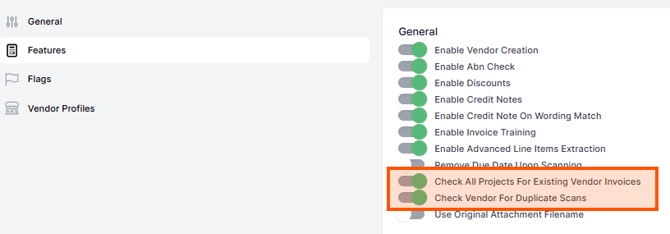
Duplicate scanning checks against existing data in ProScan+.
Smoothx Tools Admin User Only
Check All Projects For Existing Vendor Invoices
This controls how widely ProScan looks for potential duplicates. A scan is flagged as a potential duplicate when 2 of these 3 match another scan:
-
- Invoice number
- Attachment file name
- Invoice total
-
When enabled: ProScan compares against scans in every project. A scan with no project yet is still checked.
-
When disabled: ProScan only compares against scans in the same project. Scans with no project aren't checked
Check Vendor For Duplicate Scans
This controls whether the vendor counts in the 2-of-3 duplicate check above. It only flags scans; nothing is linked or changed in Procore.- When disabled: the vendor is ignored.
- When enabled: both scans must also have the same vendor.
- Results in fewer false alarms between suppliers, but scans with no vendor are never flagged by this check.
- Won't help with: two suppliers using the same invoice number on direct costs in one project. That's always flagged; change the invoice number on one of the scans.
Filter Scans to Find Duplicates
- Go to My Scan
- Click the Potential Duplicates filter
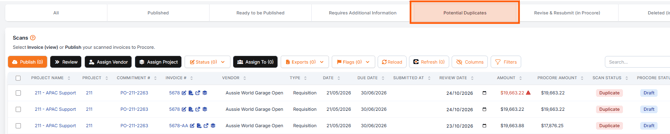
Managing Duplicates
How to view a matching invoice
- Open the Duplicate Scan
- Click the View link in the Duplicate Warning
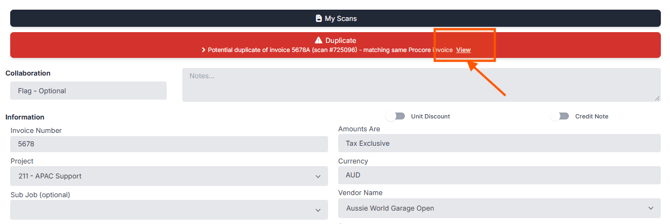
- The original scan will open in another broswer tab
How to manage duplicate scans
- Review both scans and edit as required. You can:
- Mark a Scan as "Not a duplcate"
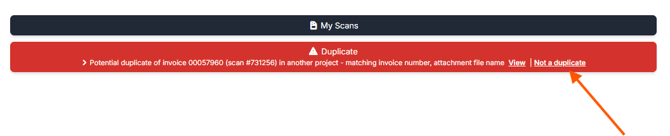
- Archive the duplicate. See ProScan+ - How to Archive a Scan.
- Edit the Invoice Number, Vendor or Purchase Order as required. Then complete the publish.
- Mark a Scan as "Not a duplcate"