![Smoothx_Logo_FC_White_RGB.png]](https://support.smoothx.com/hs-fs/hubfs/Smoothx_Logo_FC_White_RGB.png?height=20&name=Smoothx_Logo_FC_White_RGB.png)
Invoice Approvals Workflows allow you to send scanned invoices through one or more approvers before they can be published to Procore.
Approvers are notified by email and under the notifications bell in Smoothx Tools.
Every decision is recorded on the invoice showing who made it, when, and any comments.
This article includes:
-
Enable Approval Workflows
-
Add or Edit a Workflow
-
Workflow Settings
-
Building the Workflow Steps
-
Step Conditions
-
Step Settings
-
-
Approval Limits
-
Submitting an Invoice
-
Approve a Scan
-
Rejecting a Scan
-
Track Approvals in My Scans
-
Notifications
- After Approval
Enable Approval Workflows (Admin User Only)
- Log in to your Smoothx Tools - https://tools.smoothx.com/
- Select ProScan+ Application
- Select the Settings menu

- Select Features
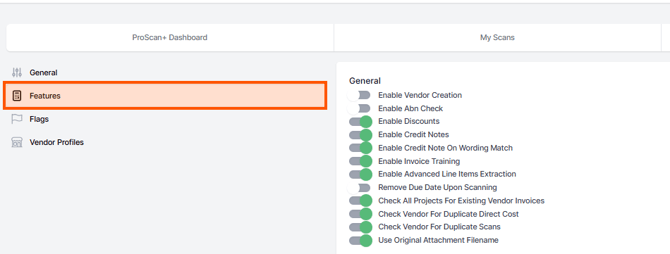
- Go to Beta Features
- Enable Approval Workflows
Turning OFF the Approval Workflow settings will stop any new submissions.
Invoices already waiting for approval can still be approved or rejected, so nothing gets stuck, and approved invoices stay locked.
Add or Edit a Workflow (Admin Only User)
- Go to Proscan+ Settings
- Select Approval Workflows
- Click Add workflow , or Edit to change one.

Example Workflows
Workflow Settings
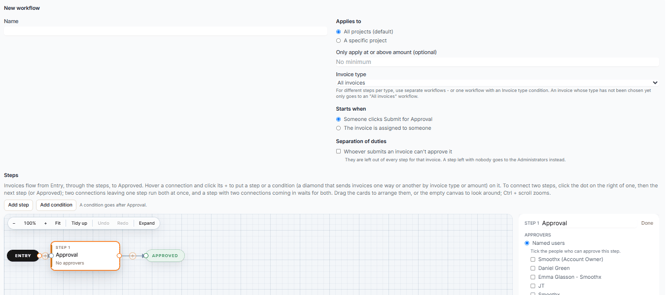
- Name:
- Enter Workflow name.
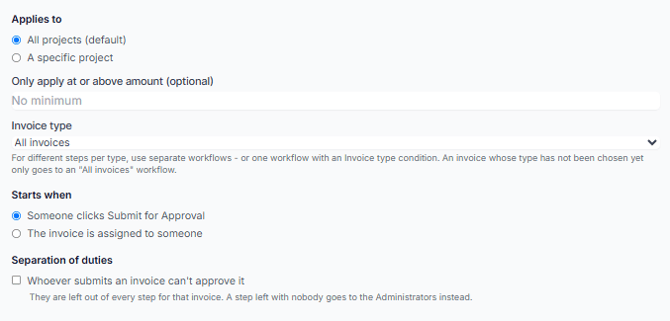
- Applies to:
- All projects (default)
-
- Or, one specific project. Select an individual project.
- Only apply at or above amount (optional):
- Enter an amount if required.
- Approvals only applies to scans at or above this amount.
- Invoice type: Select from
- All invoices,
- Direct Costs only
- Or, Progress Claims only.
- Starts when: Select the method which starts the workflow.
- Someone clicks Submit for Approval
- Or, The invoice is assigned to someone.
- Separation of duties:
- Tick if required
- "Whoever submits an invoice can't approve it" and the submitter is left out of every step for that invoice.
- A step left with nobody goes to the Administrators instead.
When an invoice is submitted for approval, the most specific workflow wins:
-
A workflow for that project first,
-
then one for the invoice's type over an "All invoices" one,
-
then the highest amount threshold the invoice reaches,
-
then the default.
An invoice whose type hasn't been chosen yet only goes to an "All invoices" workflow.
Editing a workflow never changes approvals that are already underway.
Building the Workflow Steps
The workflow steps are drawn on a canvas: Invoices flow from Entry, through the steps, to Approved.
-
Add a step or a condition:
-
Every connection has a small + in the middle.
-
Click it and choose + Step here or + Condition here.
-
Or click the Add step and Add condition buttons above the canvas work area.
-
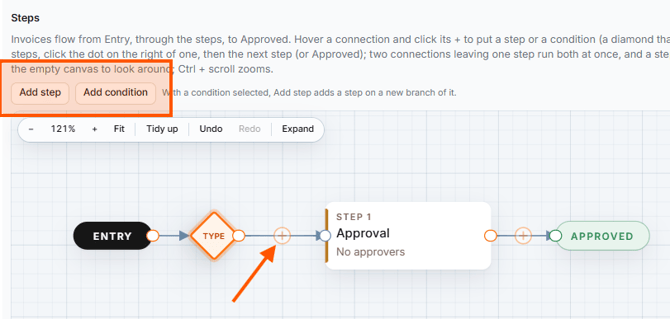
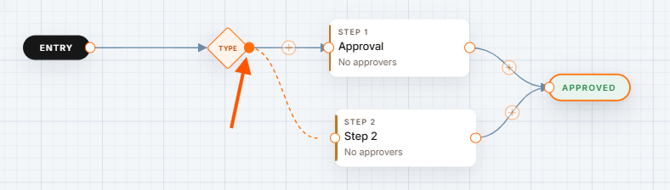
- Connect two steps:
- Click the dot on the right of one card, then the next card (or Approved). Two connections leaving one step run at the same time. A step with several connections coming in waits until all of them are approved.
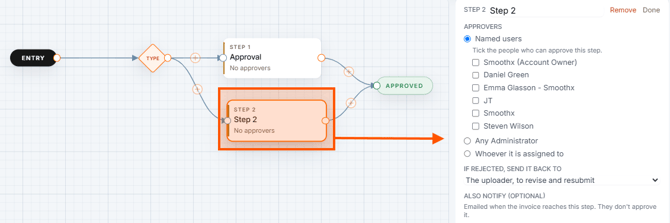
- Change a step, condition or connection:
- Click it, and its settings open in the panel on the right hand side of the canvas.
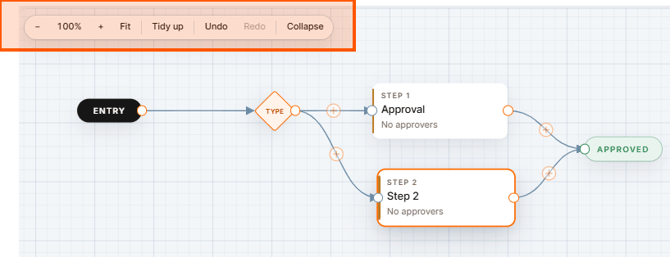
- The controls on the canvas:
- Zoom in and out,
- Fit (show the whole workflow)
- Tidy up (line everything up in the order invoices flow)
- Undo / Redo actions taken
- Expand / Collapse (edit in a full-window view; Esc goes back).
- Navigation Shortcuts:
- Drag cards to arrange them, and drag the empty canvas to look around.
- Ctrl + scroll zooms
- Delete removes what is selected
- Ctrl+Z undoes and Ctrl+Shift+Z redoes.
- The cards and the + buttons can also be reached with Tab and opened with Enter.
Conditions (Diamonds)
A condition is a diamond after a step (or after Entry) that sends invoices to a specific Step.
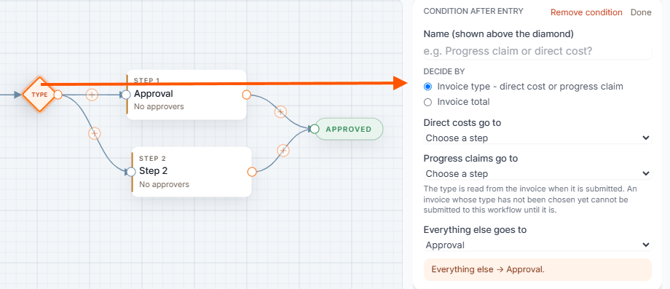
- Step Name:
- Enter the Step name
- Decide By:
- Invoice type: choose where direct costs go and where progress claims go.
- An invoice whose type hasn't been chosen can't be submitted to that workflow until someone chooses it.
- Direct costs go to: Select the step or Approved
- Progress claims go to: Select the step or Approved
- Everything else goes to: Select the step or Approved
- Invoice total: add amount rules such as "Total at least $10,000 goes to Director".
- If more than one rule, they are applied from the top and the first that matches decides; Adding Everything else goes to catches the rest.
- Add an amount rule: Totals at or Above, or Total Under
- Select the Step it goes to.
- Everything else goes to: Select the step or Approved
Step Settings
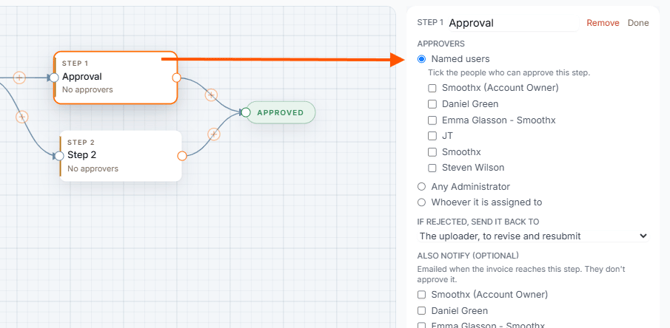
- Approvers:
- Named approvers need Proscan+ and the Approve permission.
- A User never approves an invoice they uploaded when the step is "whoever it is assigned to".
- Named users: Specific one or more user.
- Any Administrator: The ProScan+ account owner and every Administrator. See: Smoothx Tools - User Management
- Whoever it is assigned to: Specific user allocated the scan via Assign To option. See: ProScan+ - How to Assign Scans to Users.
- Everyone ticked must approve (Named Users)
- Shown once two or more people are ticked.
- The step moves on only once the last of the users have approved.
- Any one of the users can reject it.
- When unticked, any one individual users decides for the step.
- Everyone it is assigned to must approve (Whoever it is assigned to)
- The step moves on only once the last of the users have approved.
- Any one of the users can reject it.
- When unticked, any one individual users decides for the step.
- If rejected, send it back to:
- The uploader to revise and resubmit (default optoin),
- the step right before it,
- or a specific earlier step.
- Also notify:
- Select additional users who are emailed when the invoice reaches a given step, but they don't not approve it.
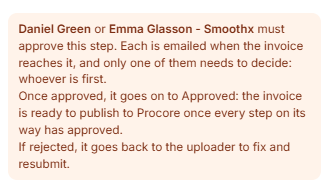
- Step Summary Box
- The box at the bottom provides a summary or the workflow steps and approvals,
- and warns about anything missing (for example, nobody ticked yet).
- A step with no approvers yet has an amber bar on its card.
Example Summary
Approval Limits
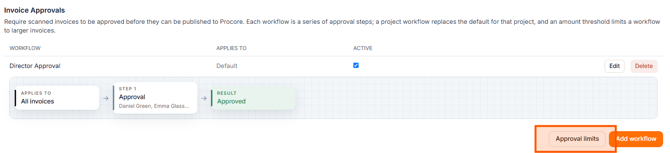
Control User approval limits. Set the most each person can approve. Leave it blank for no limit.
- On the Approval Workflows
- Click Approval Limits
- An invoice over someone's limit is not sent to them. The step's other approvers decide it.
- If nobody on a step can approve that amount, the step goes to the Administrators who can approve (any one of them decides).
- If the invoice total can't be read, it is not sent to anyone with a limit.
- Limits apply to invoices submitted after they are saved. The editor shows each approver's limit beside their name.
Submitting an Invoice
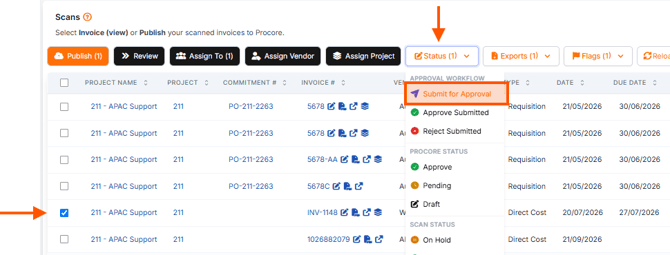
From My Scan
- Tick the selected scans
- Select the Status menu
- Select Submit for Approval
From Scan Page
- Open the selected scans
- Select Submit for Approval (bottom of scan)
The invoice moves to Pending (or Under Review for progress claims) and is assigned to the approvers of the first step, so it shows in their Assigned To list.
Assigned To
If the workflow starts when the invoice is assigned to someone, assigning a draft invoice (Assign To in My Scans) submits it straight away, as the person who assigned it. Submit for Approval still works too. Pair it with a "whoever it is assigned to" step to have the person it's assigned to approve it.
My Scan Results
-
Approvers appear in the Assigned To column automatically with their state,
-
and the Approval column shows where each invoice is.
Owners and Administrators can also act on several invoices at once from the status menu in My Scans:
Submit for Approval, Approve Submitted and Reject.
Invoices the user can't act on are skipped, and the message says how many were actually done.
Approve a Scan
-
Approvers open the invoice from the email, the notification bell, or their Assigned To list:
-
If it is waiting on them, they see Approve and Reject buttons and which step they are deciding.
-
The Approvals panel shows the whole chain and every decision so far.
-
-
On a workflow with parallel steps:
-
Each approver decides their own step.
-
The next step waits until all the steps leading into it are approved.
-
Image above: Project Manager has approved and Finance is deciding now. The Director step stays "Waiting" until both are approved.
-
On a step where everyone must approve:
-
Each approval is recorded as it comes in.
-
The Approvals panel shows, for example, "Everyone must approve - 1 of 2 so far" and who it is still waiting on.
-
Someone who has approved isn't asked again.
-
Rejecting a Scan
Rejecting always needs a reason. Where the invoice goes depends on the step's "If rejected" setting:
- Back to the uploader (the default): the invoice becomes Revise and Resubmit and the remaining steps are skipped.
- Back to an earlier step: the invoice stays in review and is Sent back.
- That step and every step after it are asked again; the steps before it keep their approvals.
- The uploader is told where it went and why.
Image above: Finance sent the invoice back to the Project Manager with a comment. Round 2 asks the Project Manager again, then Finance.
Example Rejected Scan Comments
-
When it comes back to the uploader, they see the reason in the Approvals panel:
-
Then fix the invoice and click Submit for Approval again.
-
That starts a new round, and earlier rounds stay in the history.
-
Example: If an approval limit or "whoever submits can't approve it" left someone out of a step, the Approvals panel says so under that step, for example "Escalated to the Administrators: over the approval limit of James Carter ($10,000.00)".
Track Approvals in My Scans
-
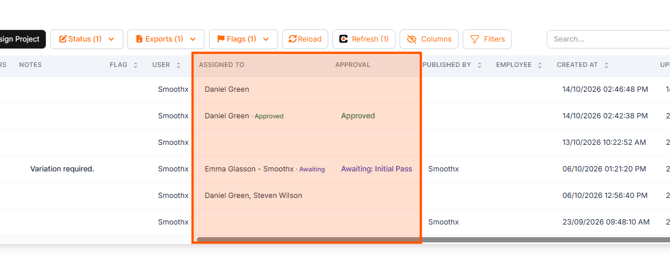
Every approver on the invoice's current round has their state next to their name in the Assigned To column:
- Awaiting: it's their turn now.
- Waiting: their step comes later, after an earlier step is approved.
- Approved or Rejected: what they decided.
-
The Approval column shows where the invoice is:
-
Awaiting: and the step name (both names on a parallel workflow),
-
Approved, Rejected or Withdrawn.
-
It's blank for an invoice that was never submitted.
-
My Scan Filters
-
To filter, click Filters above the table
-
Pick one or more options under Approval:
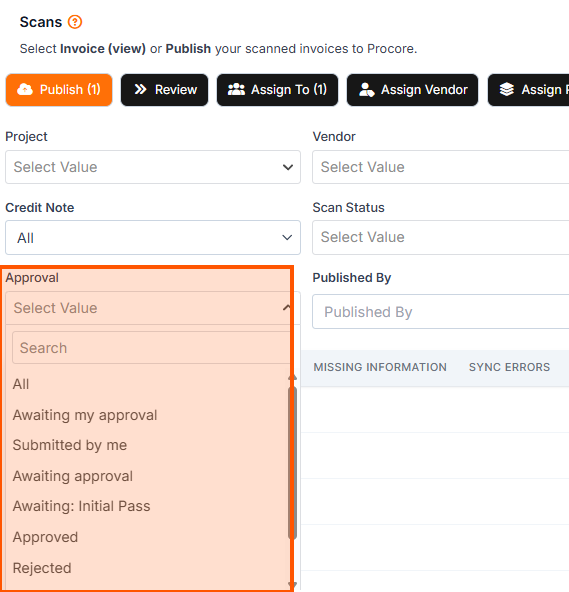
- Awaiting my approval: an approver's own to-do list. It shows only the invoices waiting on a step they're on right now, not ones they've already approved or ones whose step hasn't been reached yet.
- Submitted by me: every invoice the user put through approval, wherever it stands now. Handy for keeping track of your own invoices.
- Awaiting approval: everything still in review, whichever step it's at.
- Awaiting: xxxx (there's one option for each step currently being decided): everything sitting at that step, for example, to chase a slow approver.
- Approved: invoices that were approved.
- Rejected: invoices sent back that need fixing and resubmitting.
- Withdrawn: invoices taken out of the approval workflow part-way though.
- Requires a manual status change, e.g. moved back to Draft.
- It can then be fixed and submitted again, which starts a new approval.
- It also happens when the account owner or SmoothX support changes the status directly, for example, straight to Approved, and skips the remaining steps.
- The activity log records "Approval bypassed", or when an automated process changes the status.
- The invoice's Approvals panel shows the steps that were still open as Withdrawn, and its activity log shows who changed the status.
- Not submitted: invoices that haven't gone in for approval yet.
Example My Scan Results
Image above: James Carter filters by Awaiting my approval and sees only the two invoices waiting on his Project Manager step.
Image above: The account owner filters by Awaiting: Finance to see what's waiting on Finance.
Notifications
Approval Workflow particpants will be notified via email. See: Smoothx Tools - Notification Bell.
-
Approvers get an email when an invoice reaches their step.
-
The uploader gets one for every decision (a rejection includes the reason),
-
and earlier approvers are told when the final step approves.
-
Anyone on a step's "also notify" list gets an email too.
-
Each email links straight to the invoice, and switches the user to the right company if they belong to more than one.
Awaits your Approval Email
-
Emails follow the approval, not the Assign To list.
-
The "awaits your approval" email is sent at the moment the invoice reaches someone's step, which is also when it is added to their Assigned To list.
-
Assigning someone with Assign To doesn't send an email by itself,
-
With one exception: on a workflow that starts when the invoice is assigned to,
-
and the first step's approvers (for example "whoever it is assigned to") get their email straight away.
-
Example Approval Email
Notification Bell
-
The same notices appear under the bell in the top navigation bar.
-
Opening the bell marks them as read.
-
Once a step is decided, the "awaits your approval" notices for everyone it is no longer waiting to approva are cleared automatically
-
The bell only counts what scan are awaiting action.
Example Bell Notification
Reminders
-
If a step is left undecided, its approvers get a reminder after 3 days,
-
then another every 3 days,
-
and up to 3 reminders.
-
If it is still waiting after that, the account owner and Administrators get one "Overdue" notice saying who it is waiting on and for how long.
Every user chooses how they get their own approval emails at the bottom of the bell (owners and Administrators can also change it on the Settings page): See Smoothx Tools - Notification Bell.
After Approval
-
Once every step has approved:
-
The invoice is ready to publish and its financial details are locked: amounts, vendor, line items, invoice number and project.
-
Flags, notes and archiving still work.
-
To change a locked invoice, the account owner (or SmoothX support) moves it back to Draft, which is recorded in the activity log. It is then edited, resubmitted and approved again.
-
For more ProScan+ settings see: