![Smoothx_Logo_FC_White_RGB.png]](https://support.smoothx.com/hs-fs/hubfs/Smoothx_Logo_FC_White_RGB.png?height=20&name=Smoothx_Logo_FC_White_RGB.png)
The following section is an overview of the Smoothx Tools Settings menu.
Some settings apply to specific applications, e.g. ProScan+ vs Cost+.
Some settings are only visible to Smoothx Tools Admin users
Smoothx Tools - Settings
Manage the settings for your Smoothx Tools account.

-
General - Smoothx Tools General Setting
-
Tax Codes - Manage your Procore tax codes
-
Currencies - Manage your Procore currencies. Set a default currency for scans.
-
Tools - Refresh Procore data
-
Procore Access - Connect Procore to Smoothx Tools, Set up Procore Marketplace Apps
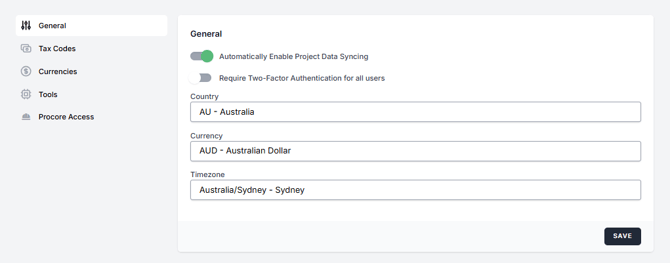
General
Set your country and currency settings, along with company-wide two-factor authentication.
-
Automatically Enable Project Data Syncing
- When enabled, all new Procore projects will have syncing/publishing functions turned on.
-
Require Two-Factor Authentication for all users
- When enabled, all users in your company will have two-factor authentication turned on by default.
-
Country
- Apply your company country
-
Currency
- Apply your company currency
-
Timezone
- Apply your company timezone
Tax Codes
Set you company default Procore Tax Code.
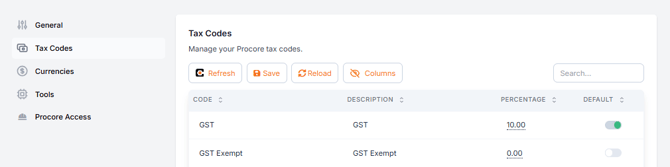
- Code
- Tax Code set in Procore
- Description
- Tax Description set in Procore
- Percentage
- Tax percentage set in Procore Tax Codes
- Percentage (Optional) Cost Plus ONLY
- The "Percentage (optional)" field on a tax code is a second tax rate that gets charged on top of the main percentage, e.g. GST plus a state or provincial tax.
- Example: Percentage = 10% and Percentage Optional = 2.5%. Any expense using the tax code will have 12.5% in total. The payment application shows the two taxes as separate lines rather than one combined amount. Only used in Cost Plus payment applications and claim exports.
- Default
- Set the default tax code. This will be applied when a tax code is not specified in Procore, e.g. Direct Cost missing the tax code.
Currencies
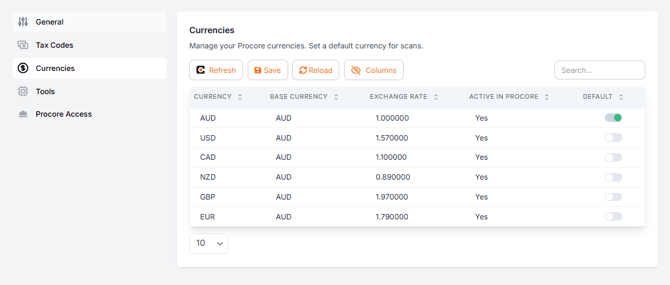
Manage your Procore currencies. Set a default currency for scans.
Required when your Procore projects have Multi-Currencies settings enabled
-
Exchange Rate
- Current exchange rate as configured in Procore Multi-Currency settings
-
Default (Recommend setting a default)
- When enabled, this currency will be applied to invoices published to Procore if another currency is not specified.
Tools
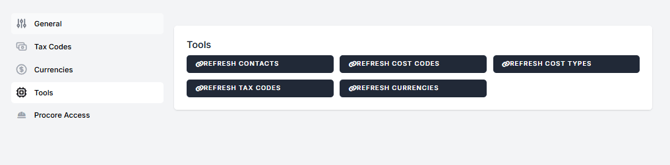
Used to ensure the data in ProScan+ is aligned with your Procore account.
All Tools should be refreshed when first setting up your Smoothx Account
Refreshing Tools is also recommended when any major changes to your Procore Financials setup takes place, e.g. new Cost Codes added to Procore.
-
Refresh Contacts
- Update the company Contacts in ProScan+
-
Refresh Cost Codes
- Update the Cost Codes in ProScan+
-
Refresh Cost Types
- Update the Cost Types in ProScan+
- Refresh Tax Codes
- Update the Tax Code in ProScan+
-
Refresh Currencies
- Update the Currencies in ProScan+
Procore Access
You will need to connect your Procore account to Smoothx Tools and setup the relevant Procore Marketplace Apps to establish the link to Procore.
You will not be able to publish invoices to Procore until Procore is succesfully linked to Smoothx Tools.
See: Smoothx Tools - Connecting Procore
See: Smoothx Tools - Install Procore Marketplace Apps